Typeless — Desktop OCR Tool
Typeless is an offline desktop OCR tool for Windows and Linux that extracts text from screenshots, screen regions, and clipboard images instantly — no cloud, no API keys, no internet required.
Project Details
- Desktop Application
- Electron + Python desktop app
- Fully offline — no internet required
- Windows & Linux support
- Progress: 100%
Technologies
Key Features
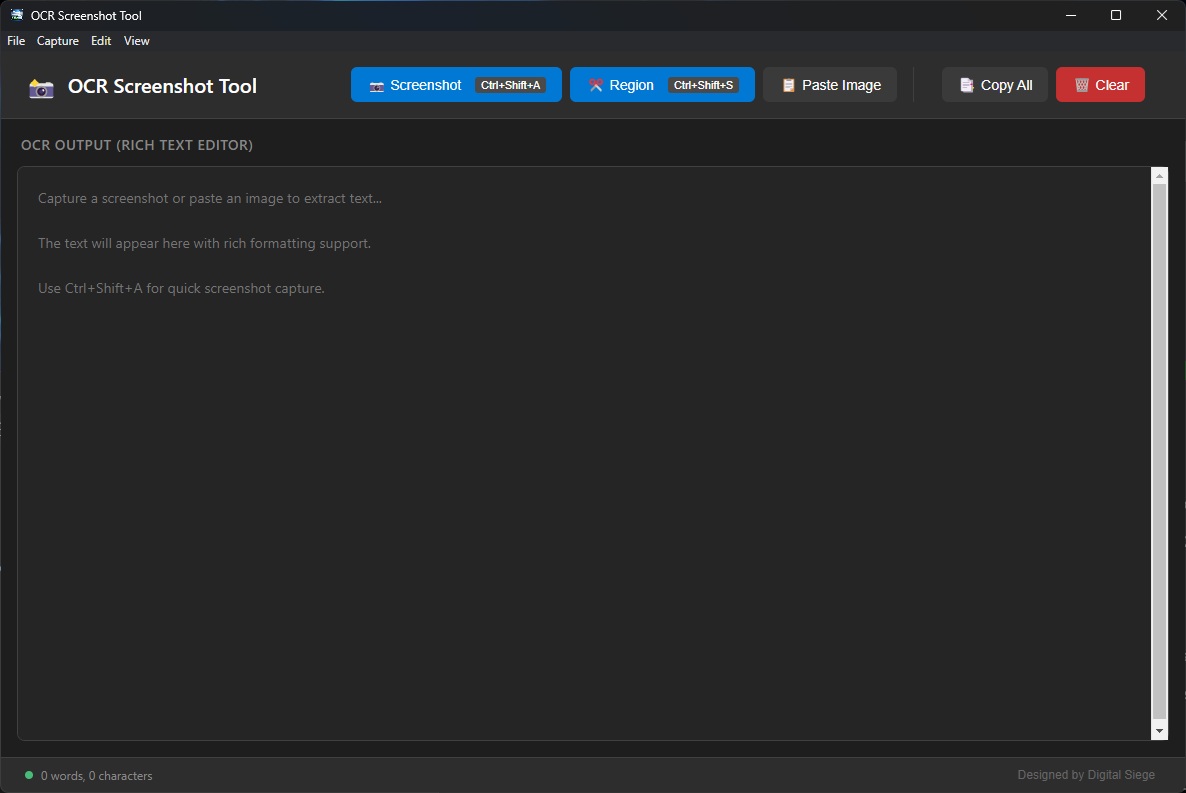
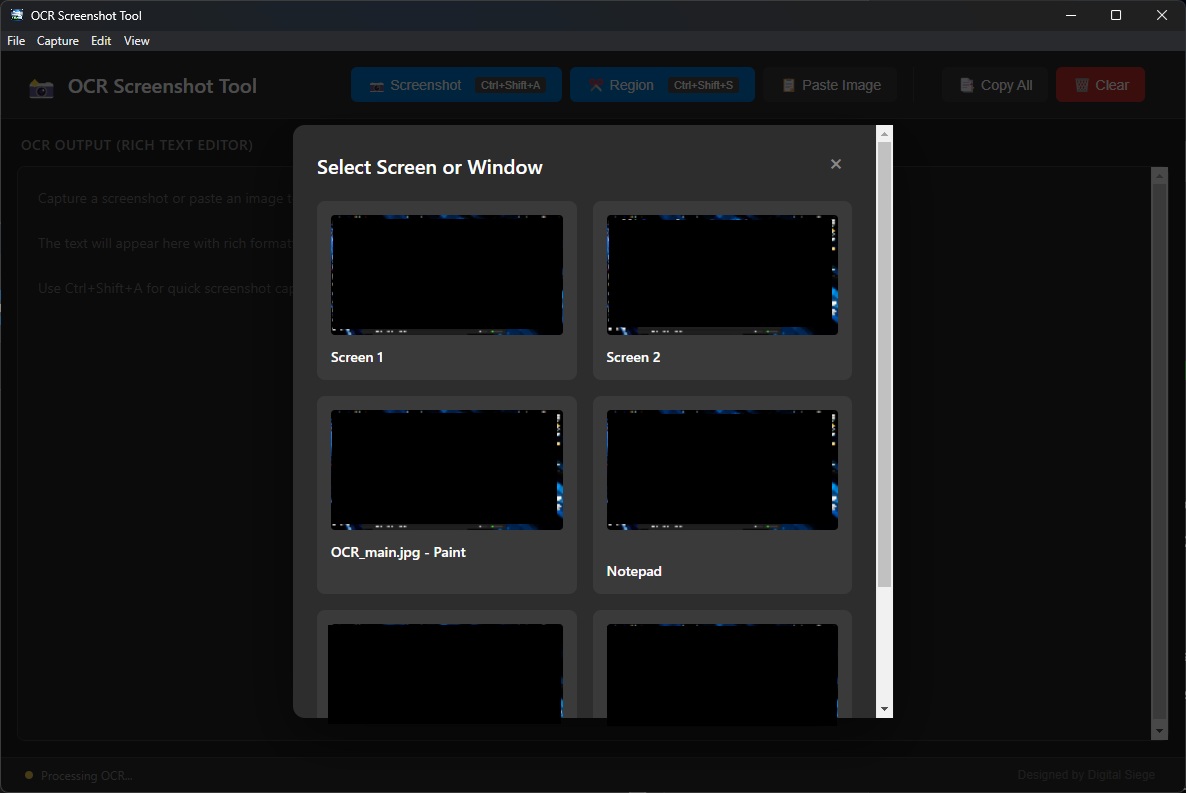
- • Full screenshot & window capture
- • Region snipping tool (drag-to-select)
- • Paste & OCR from clipboard
- • Editable extracted text output
- • One-click copy to clipboard
- • Global keyboard shortcuts
- • Built-in debug console log
Project Overview
What Is Typeless?
Typeless is a lightweight desktop OCR (Optical Character Recognition) tool built with Electron and Python. It lets you capture any part of your screen, a full window, or an image from your clipboard and instantly extract the text from it — all completely offline using RapidOCR and ONNX Runtime.
No cloud services. No API keys. No internet connection required.
Demo
The Problem
Copy-pasting text from images, PDFs with bad encoding, or on-screen content that isn’t selectable is a daily frustration. Most OCR solutions require uploading images to a cloud service or signing up for an API key. Typeless solves this by running everything locally with near-instant results.
How It Works
Three-process architecture keeps things fast and isolated:
- Electron main process — window management, global shortcuts, IPC routing, and spawning the Python subprocess
- Electron renderer — the entire UI in a single self-contained vanilla HTML/CSS/JS file
- Python OCR backend — a long-running subprocess using RapidOCR over a JSON protocol, processing images via ONNX Runtime
Keyboard Shortcuts
| Shortcut | Action |
|---|---|
Ctrl+Shift+A | Full screenshot capture |
Ctrl+Shift+S | Region capture (snipping tool) |
Ctrl+Shift+L | Open console log window |
Escape | Cancel region selection |
Usage
- Full Screenshot — click Screenshot (or
Ctrl+Shift+A), then pick a screen or window - Region Capture — click Region (or
Ctrl+Shift+S), then drag a rectangle over what you want - Paste Image — copy any image to your clipboard first, then click Paste Image
- Edit — modify the extracted text in the editor as needed
- Copy — click Copy All to send the text to your clipboard
Tech Stack
- Electron 28 — desktop application framework
- RapidOCR — offline OCR engine powered by ONNX Runtime
- Python / Pillow / NumPy — image processing backend
- Vanilla HTML/CSS/JS — zero frontend framework overhead
Screenshots